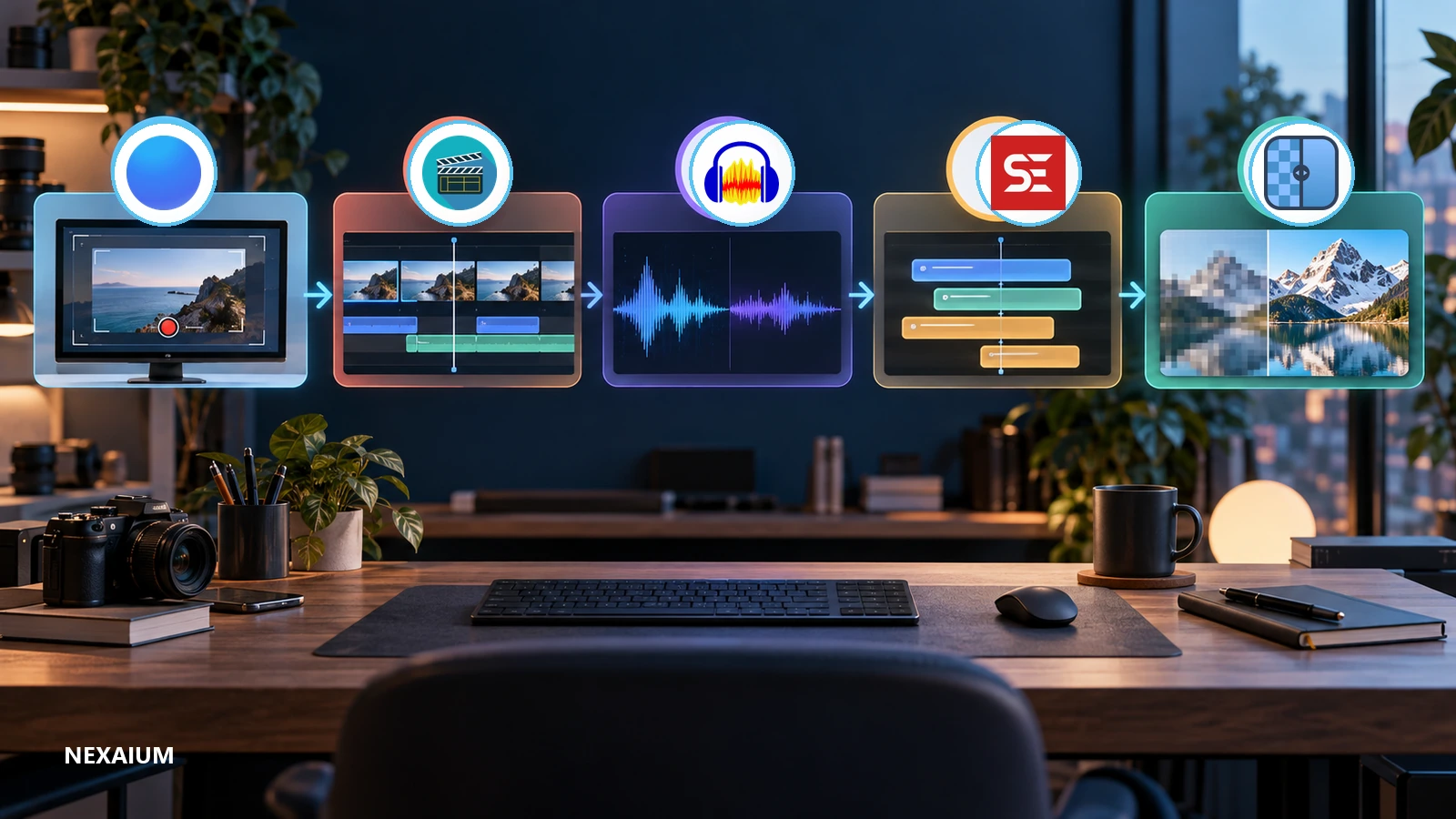
What you will finish
Use the complete workflow and you can leave with:
- one locally saved screen recording
- one shorter video with obvious dead space removed
- one cleaned voice track or verified decision to keep the original
- one reviewed
.srt caption file - one enlarged thumbnail source image
You can also use any tool independently. Keep your original files until you have checked every export.
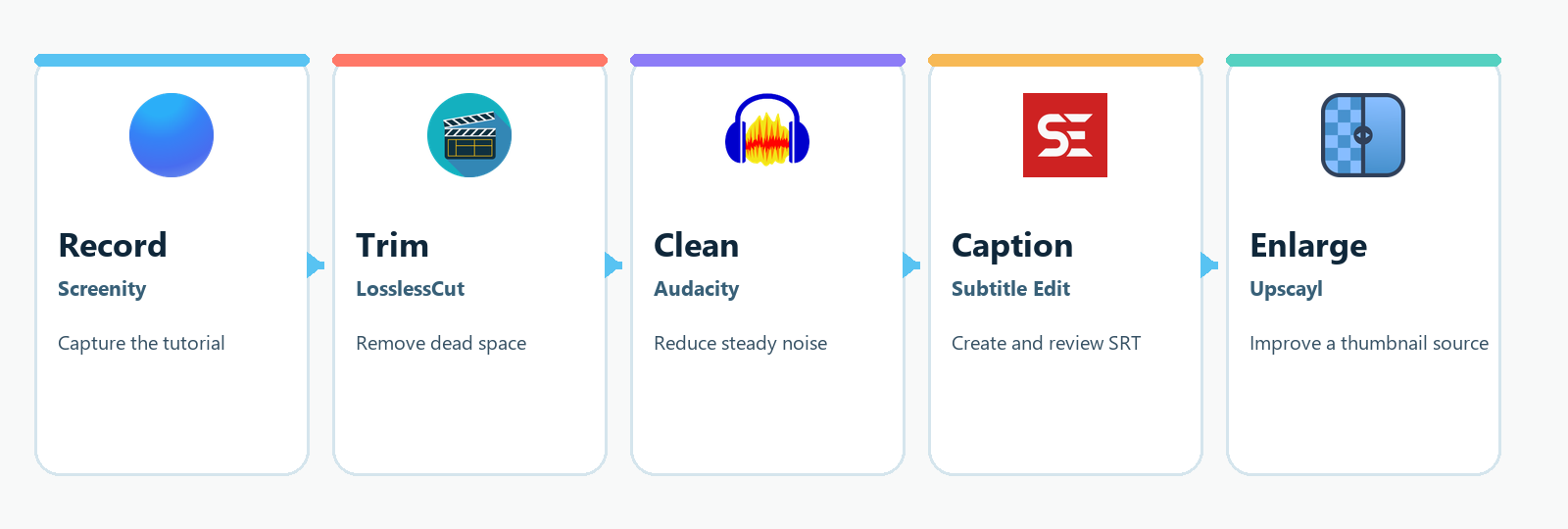
| Stage | Tool | Use it for | Free route | Main boundary |
|---|
| Record | Screenity | Capture a tab, app, camera, microphone, or screen | Free browser extension | Advanced cloud editing and share links belong to Screenity Pro |
| Trim | LosslessCut | Remove dead space without re-encoding most of the file | Manual downloads from the official repository | Lossless cuts can move to nearby keyframes |
| Clean | Audacity | Reduce a steady noise floor and export a voice track | Official desktop download | Noise reduction cannot repair every recording |
| Caption | Subtitle Edit | Transcribe, time, review, and export subtitles | Local engines such as Whisper CPP are available | Accuracy, speed, storage, and hardware vary by model |
| Enlarge | Upscayl | Increase the pixel dimensions of a thumbnail source | Official desktop release | Requires a compatible GPU and cannot restore focus |
Before you install anything
- Keep one untouched copy of the recording, audio, captions, and image.
- Download only from the official links in this guide.
- Check the current operating-system requirements on the download page.
- Do not upload client, private, or unreleased material to an online service without permission.
- Test each tool on a short, non-sensitive file before using it on a full project.
This guide explains documented workflows. NEXAIUM did not install or benchmark these five tools for this article.
1. Record the tutorial with Screenity
View GitHub Repository · alyssaxuu/screenity
Problem
You need a clean walkthrough, but opening a full video editor before you have captured the screen slows down the first useful take.
Result
A locally saved recording with the right screen area, microphone, and privacy controls selected before capture.
Install the free route
Screenity's free open-source recorder is a browser extension for Chrome and Chromium-based desktop browsers such as Edge, Brave, Arc, and ChromeOS. Install it from the official Screenity extension page or the Chrome Web Store link provided there. No account is required for the extension.
Screenity Pro is separate. It adds cloud storage, share links, and advanced editing features. Review current pricing before using Pro because prices and plan details can change.
Complete one recording task
- Write a 3-part recording note: the problem, the demonstration, and the finished result.
- Open Screenity and choose the smallest useful capture area: a browser tab, one application, a custom area, or the full screen.
- Select the microphone and screen audio only when the tutorial needs them.
- Hide notifications and use Screenity's blur tool for private information that must remain on screen.
- Record a 30-second test. Stop and check that the cursor, voice, and selected window are visible and audible.
- Record the real walkthrough.
- Save the result locally. Recordings made with the extension stay local unless you deliberately use Google Drive or the paid cloud editor.
Example
Record a 2-minute walkthrough showing how to schedule one website post. Show the starting screen, the exact setting that changes, and the final scheduled state. Do not include customer data or a real password.
Expected result
A local video file that opens, contains the complete demonstration, and reveals no private information.
2. Remove dead space with LosslessCut
View GitHub Repository · mifi/lossless-cut
Problem
The recording is usable, but long pauses at the beginning and end make it feel unfinished.
Result
A shorter copy created quickly without a full video re-encode when the source format supports the workflow.
Install the free route
Use the official LosslessCut repository and its latest releases. The maintainer provides free manual downloads for Windows, macOS, and Linux. Store versions are a paid convenience route with simpler installation and stable automatic updates. The project notes that store releases can lag behind newer GitHub versions.
Complete one trimming task
- Drag the recording into LosslessCut or use
Ctrl+O on Windows and Linux, or Command+O on macOS. - Move the timeline cursor to the first useful frame and press
I to set the segment start. - Move to the final useful frame and press
O to set the segment end. - Export the selected segment to a new file. Do not overwrite the original.
- Open the exported file and check its first second, final second, audio sync, and full duration.
Example
Trim the setup pause before the first sentence and the mouse movement after the final result. Keep the useful demonstration in one segment.
Expected result
A shorter video that opens correctly and keeps the complete demonstration.
Important limitation
Lossless video cuts often align to keyframes. The documented start point can move to a nearby earlier keyframe, and some codecs need trial and error. If the cut is inaccurate, test keyframe mode on and off, adjust the cutpoint, or use the experimental Smart Cut only after reading the current limitation notes. Always inspect the export manually.
3. Reduce steady voice noise with Audacity
View GitHub Repository · audacity/audacity
Problem
Your narration is understandable, but a constant fan or room noise distracts from the message.
Result
A reviewed audio file with a lower steady noise floor and no obvious metallic or underwater artifact.
Install the free route
Download Audacity from the official Audacity download page. Current Audacity 3.x support covers Windows, macOS, and GNU/Linux. Audacity 4 documentation is now separate, so confirm the version you installed before following a menu path.
If the video audio format does not open, read Audacity's current FFmpeg installation guidance. Requirements differ by operating system.
Complete one cleanup task in Audacity 3.x
- Import the audio file, or an audio track extracted from the video.
- Find a short section that contains only the steady background noise. Do not include speech.
- Select that section and open Effect > Noise Removal and Repair > Noise Reduction.
- Choose Get Noise Profile.
- Select the full voice track, reopen Noise Reduction, and use Preview.
- Apply a restrained setting only if the preview sounds more natural than the original.
- Export a new WAV file for another editing step, or the delivery format you actually need.
Example
Use a half-second of room tone from before the first sentence as the profile. Compare the consonants and quiet word endings before applying the effect to the full clip.
Expected result
A separate audio export with less steady noise and intelligible speech.
Important limitation
Noise reduction is not magic. Variable music, echoes, clipping, traffic, and voices in the background may remain. Aggressive settings can create audible artifacts. If the preview damages the voice, keep the original or re-record the line.
4. Create and review captions with Subtitle Edit
View GitHub Repository · SubtitleEdit/subtitleedit
Problem
Automatic captions can save time, but publishing unreviewed speech recognition creates names, timings, and technical terms the speaker never said.
Result
A reviewed .srt file with corrected text and readable timing.
Install the free route
Download a current build from the official Subtitle Edit releases page. The project documents Windows 10 22H2 or newer, macOS 12 or newer, and Linux builds. Its Flatpak bundles the required video dependencies; native Linux builds require mpv and ffmpeg.
Subtitle Edit is an offline open-source application for its core features. Local speech-to-text engines such as Whisper CPP are available on Windows, Linux, and macOS. Optional online engines can require accounts, API keys, billing, or data transfer to another provider.
Complete one caption task
- Open the trimmed video in Subtitle Edit.
- Choose Video > Speech to text.
- Select a local engine, such as Whisper CPP, if you want the media to remain on the device.
- Choose a model and language. Larger models can require more time, memory, and disk space.
- Select Transcribe and let the engine and model finish downloading if this is the first run.
- Review every subtitle against the audio. Correct names, numbers, punctuation, line breaks, and start and end times.
- Export an
.srt file with the same base name as the video.
Example
For website-post-demo.mp4, save the reviewed captions as website-post-demo.srt. Correct a product name consistently across every line before export.
Expected result
A caption file that opens in a text editor, follows the video in order, and has been reviewed by a person.
Important limitation
Local does not mean instant. Model download size, language, computer hardware, background noise, and overlapping speakers affect speed and accuracy. Online engines may cost money. Check the selected engine's current terms before sending any media.
5. Enlarge a thumbnail source with Upscayl
View GitHub Repository · upscayl/upscayl
Problem
The best frame or reference image is too small for a clean thumbnail layout.
Result
A larger image source that you can compare with the original before using it.
Install the free route
Download Upscayl from the official releases page or Upscayl's official website. The desktop app supports Windows 10 or later, macOS 12 or later, and Linux packages documented by the project.
Upscayl requires a Vulkan-compatible GPU for its normal processing route. Most CPUs and many integrated GPUs do not work. Check compatibility before making it part of a deadline.
Complete one image task
- Choose a thumbnail source you own or have permission to use.
- Open Upscayl and select the source image.
- Choose a model appropriate to the image rather than assuming one model is best for every style.
- Choose the scale and a new output folder.
- Run the upscale.
- Compare the original and result at 100 percent. Check faces, small type, straight edges, textures, and any invented detail.
- Keep the result only if it helps the final layout.
Example
Upscale a clean product screenshot before placing it into a thumbnail template. If small interface text changes shape, replace that text during layout instead of treating the generated pixels as accurate.
Expected result
A larger image file plus a documented decision to use it, revise it, or reject it.
Important limitation
Upscayl estimates detail. It cannot deblur an out-of-focus image or restore information that was never captured. It may create convincing but inaccurate textures. Keep the original and inspect the output before publication.
Worked example: one tutorial from start to finish
A creator needs a short website-settings tutorial.
- Record: Screenity captures one browser tab, the microphone, and cursor highlights. Notifications are hidden and account details are blurred.
- Trim: LosslessCut removes 8 seconds of setup and 5 seconds after the finished result. The creator checks the exported cut because the first cutpoint sits near a keyframe.
- Clean: Audacity uses a short room-tone selection to reduce a steady fan sound. The creator previews the result and keeps a restrained pass because a stronger setting damages the voice.
- Caption: Subtitle Edit runs a local speech-to-text engine, then the creator corrects the website name, line breaks, and timing before exporting
.srt. - Enlarge: Upscayl creates a larger copy of one clean screenshot for the thumbnail. The creator rejects a version that alters small interface text and uses a simpler crop.
The finished package contains the trimmed video, reviewed audio choice, reviewed captions, and approved thumbnail source. The example is a workflow demonstration, not a timed benchmark or performance promise.
Common mistakes to avoid
- Installing from a third-party download page when an official release exists.
- Treating 147K combined stars as proof that every tool is safe or right for every computer.
- Deleting the original recording before checking all exports.
- Expecting a lossless cut to land on any frame.
- Applying strong noise reduction without previewing the voice.
- Publishing machine captions without reviewing names and timing.
- Sending private media to an optional online transcription engine without permission.
- Expecting an image upscaler to repair blur or preserve every small detail.
- Assuming the free Screenity extension includes Screenity Pro's cloud editor and share links.
Finished-state checklist
- The recording shows only the intended screen area.
- The trimmed export starts and ends correctly.
- The voice sounds natural after cleanup, or the original was kept.
- Every caption was reviewed against the audio.
- The upscaled image was compared at 100 percent with the original.
- Original files remain available.
- Every download came from an official source.
- Paid stores, online engines, or Pro features were used only after checking current terms and costs.
Why this is different from the 7-repository guide
NEXAIUM's existing seven-repository guide helps readers choose among broad open-source routes such as local voice, AI operations, lessons, spatial stories, local model infrastructure, and SEO research. This guide is a separate production workflow. Its five tools work on one creator asset from recording through delivery preparation.
Source and freshness note
Repository stars were checked through GitHub's official API on October 13, 2026:
- LosslessCut: 44,526
- Subtitle Edit: 14,538
- Screenity: 18,775
- Audacity: 18,726
- Upscayl: 50,521
- Combined: 147,086, shown as 147K in the hook
Stars, releases, interfaces, system requirements, prices, and optional service terms can change. Follow the official links and verify the current page before installing or paying.