Export opted-in ManyChat contacts, research public Instagram bios, and turn the evidence into an audience decision. Includes 14 screenshots and two copyable prompts.
Instagram told me my audience was 91% men, with about half aged 25 to 44 and a third in the United States. That is all it told me. I had no idea what they do for a living, so I kept guessing what content and tools to make for them.
In my run, 968 contacts reached the export action. After removing blank or repeated handles, I had 917 usernames to research. Apify returned 762 profiles; 320 were private, and 154 had enough public information to classify. These are observations from one audience, not a benchmark or a complete picture of every follower.
Group among 154 classifiable profiles
Accounts
Business owners, founders and freelancers
34
Students
26
Content creators and editors
21
Sports and hobby accounts
20
AI and tech pages
19
Artists, musicians and photographers
12
Tech and AI professionals
11
Other professions
11
The point is not to profile individual subscribers. It is to make a better aggregate content decision. Here is the workflow, with the actual screens from my setup.
Before you start
For: creators who already have opted-in Instagram contacts in ManyChat. If you have no contacts yet, run a relevant automation first and revisit this guide when you have enough data to learn from.
You need: a ManyChat account with Google Sheets available, a Google account, and either (a) Claude Code with Zapier and Apify connected or (b) Apify plus a chat tool that can work with a CSV. Google Sheets is included in ManyChat's current Essential plan, but availability can vary for older accounts; check your own plan before building. Zapier's Free plan currently includes 100 tasks per month, and a successful Zapier MCP tool call uses two tasks. Apify's own Instagram Profile Scraper currently advertises $2.60 per 1,000 results and a $5 monthly Free-plan credit; check live pricing and remaining credit before you run it. ManyChat plan · Zapier pricing · Zapier MCP task usage · Apify scraper
Budget about an hour of hands-on work plus processing time. Start with a small sample. Keep the spreadsheet private and use only data you are entitled to process under your privacy notice and applicable rules.
1. Prepare the Google Sheet
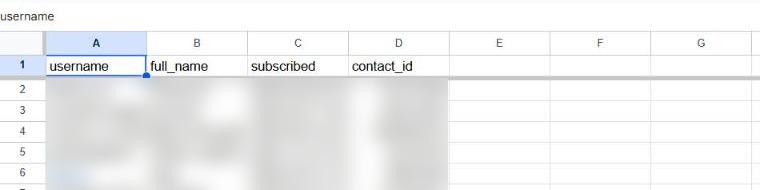
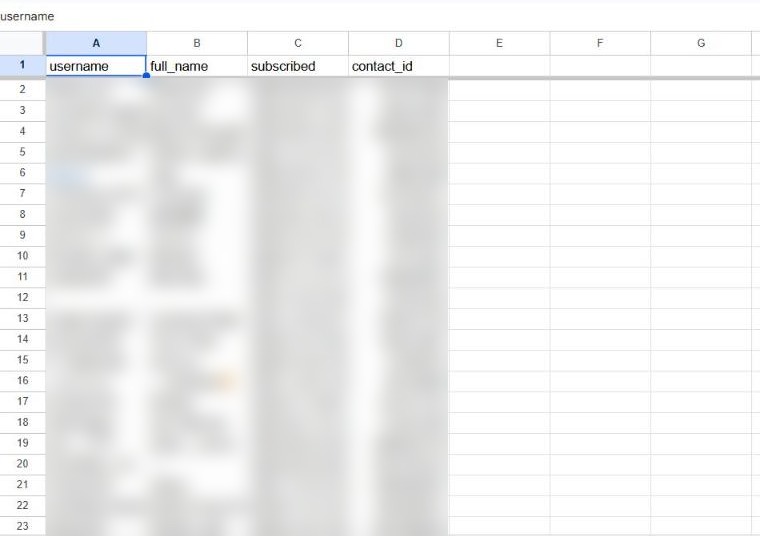
Create a spreadsheet. In row 1, enter these exact headers, one per column: username, full_name, subscribed, contact_id. Name the tab manychat export or another clear name. ManyChat will map fields to these column titles.
SCREENSHOT 01 / 14The four headers in row 1. The example contact rows are blurred.
2. Build an action-only export in ManyChat
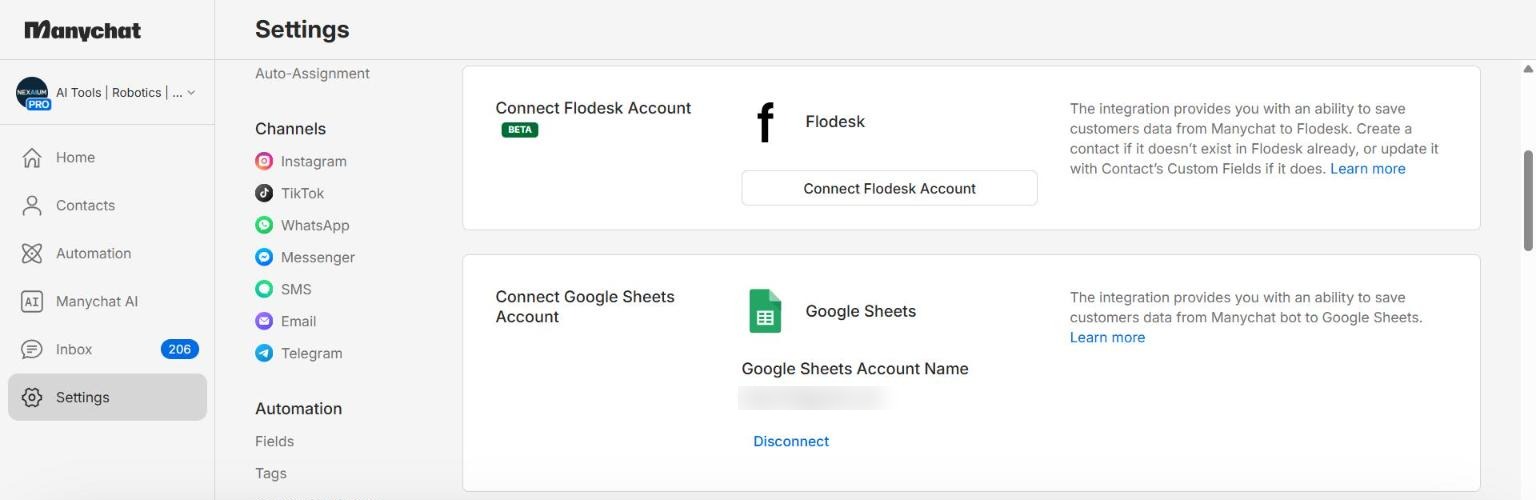
In Settings → Integrations, connect Google Sheets to the Google account that owns the spreadsheet. Review the requested permissions; approve only what you expect for this connection.
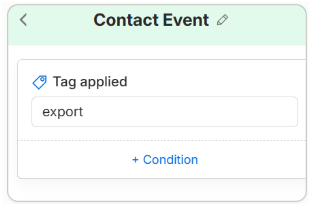
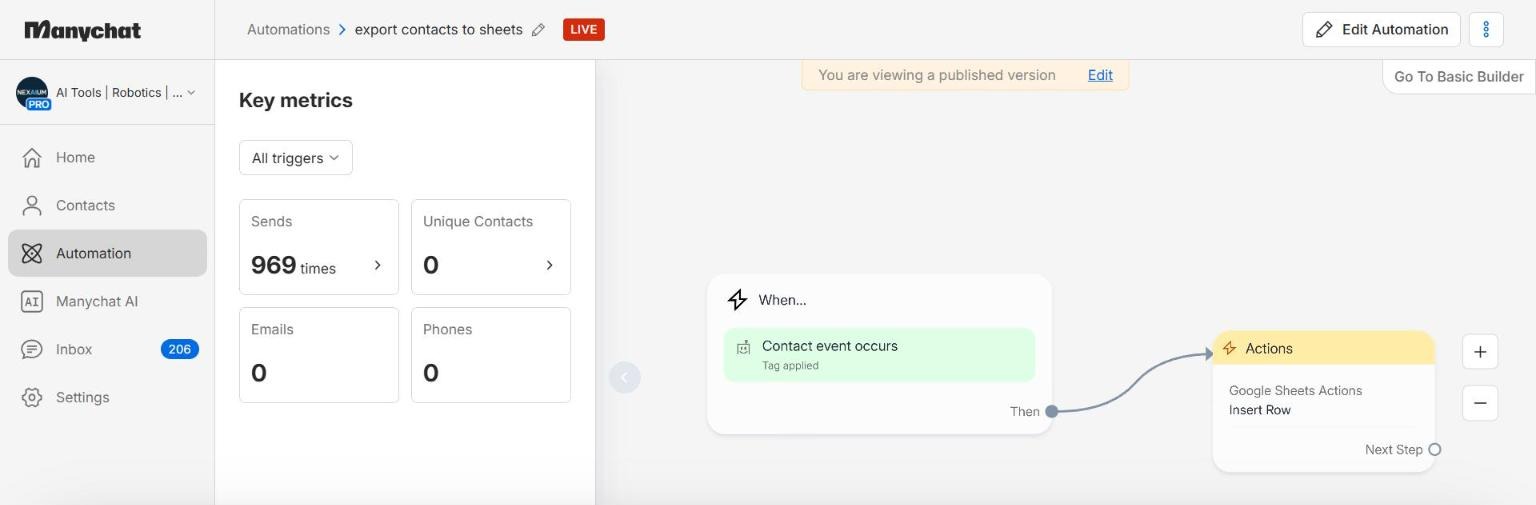
Under Automation, create an automation from scratch. Set the trigger to Tag applied and create a tag such as export.
SCREENSHOT 03 / 14A Tag applied trigger using the export tag.
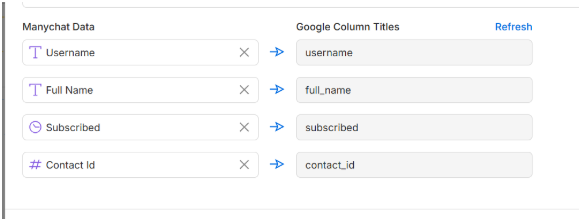
Add Actions → Google Sheets Actions → Insert Row. Select the spreadsheet and tab, then map ManyChat's Instagram Username, Full Name, Subscribed status and Contact ID to the matching columns. Confirm that username is the Instagram handle, not a display name.
Do not add a message step. The automation should contain only the tag trigger and Insert Row action. Name it clearly, then set it live. An action-only automation does not send a DM. ManyChat's export guidance describes this pattern.
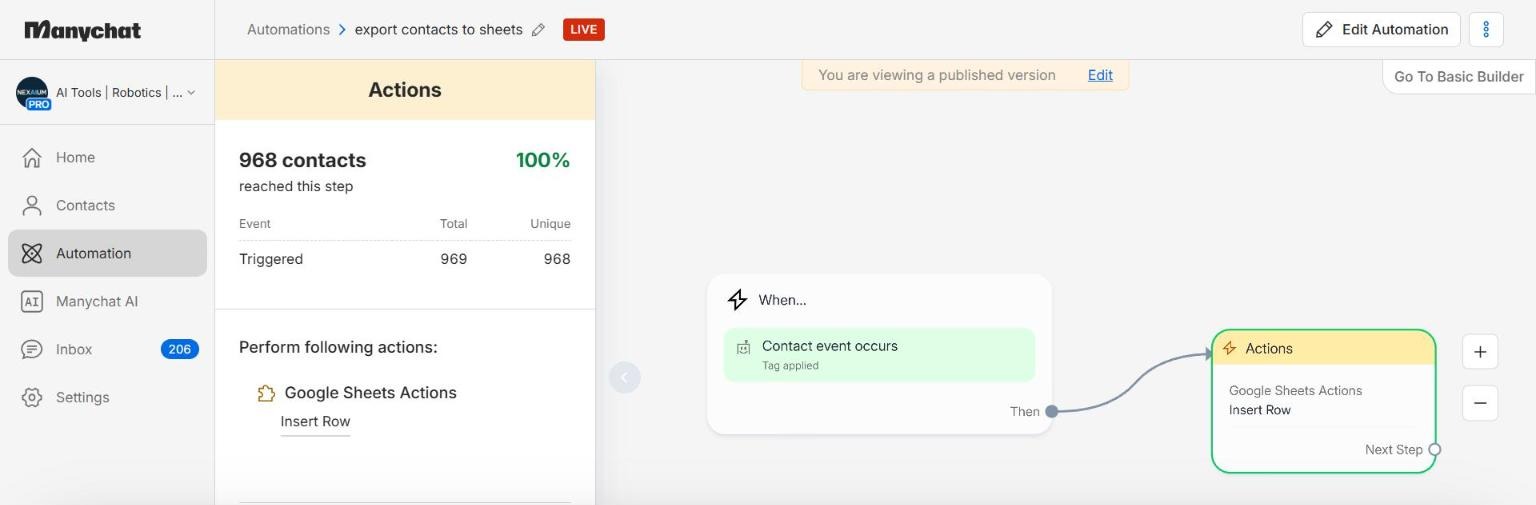
SCREENSHOT 05 / 14The finished action-only automation is live.
3. Test one contact before exporting more
Open one contact with Subscribed status, apply the export tag, wait for the action to finish and check the Sheet. You should see exactly one new row with a valid Instagram username. If the cell is empty or contains a display name, fix the field mapping. If you applied the tag before the automation went live, remove it and apply it again.
SCREENSHOT 06 / 14Test rows arriving in the Sheet; personal details are blurred.
Stop if the one-contact test fails. Do not bulk-process contacts until the destination, columns and permission scope are correct.
4. Export opted-in contacts in controlled batches
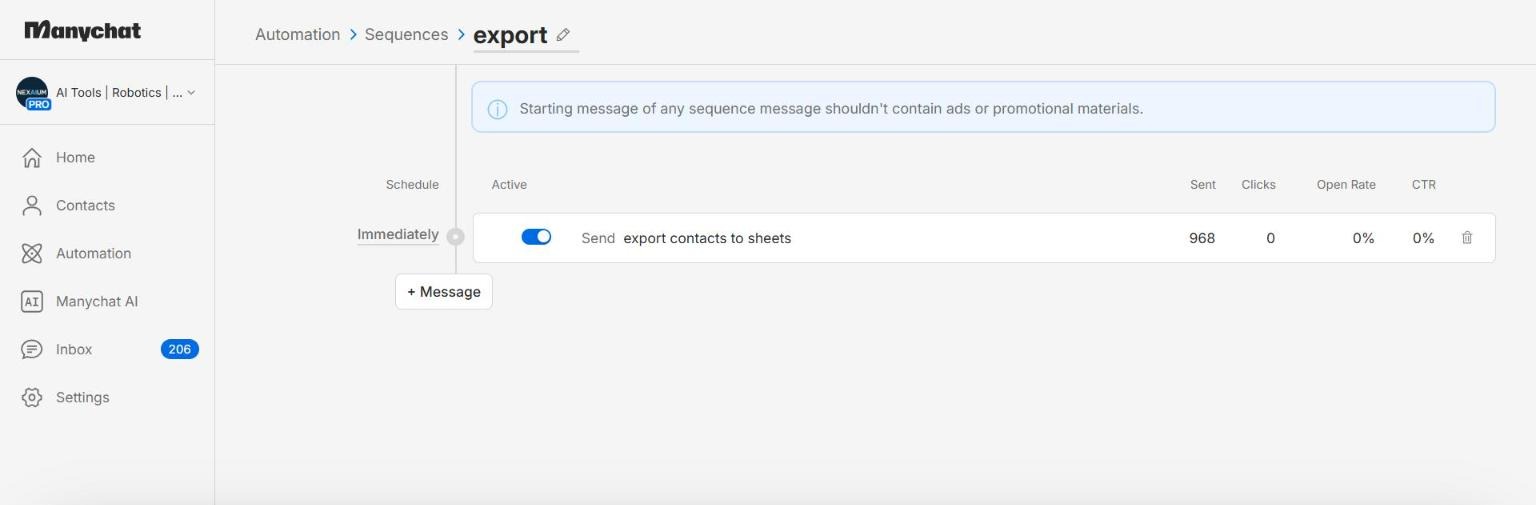
In my setup, a bulk tag action did not reliably run the Tag applied trigger, so I used a Sequence to invoke the existing export automation. Create a Sequence named export under Automation → Sequences.
SCREENSHOT 07 / 14The temporary export Sequence in ManyChat.
Add a step scheduled Immediately. Choose Select Existing and select your action-only export automation. Check that the step is active and contains no outbound message. ManyChat calls the step a “Message,” but whether anything is sent depends on the selected automation; inspect it before bulk enrollment. Sequence setup
SCREENSHOT 08 / 14An immediate, active Sequence step selects the existing export automation.
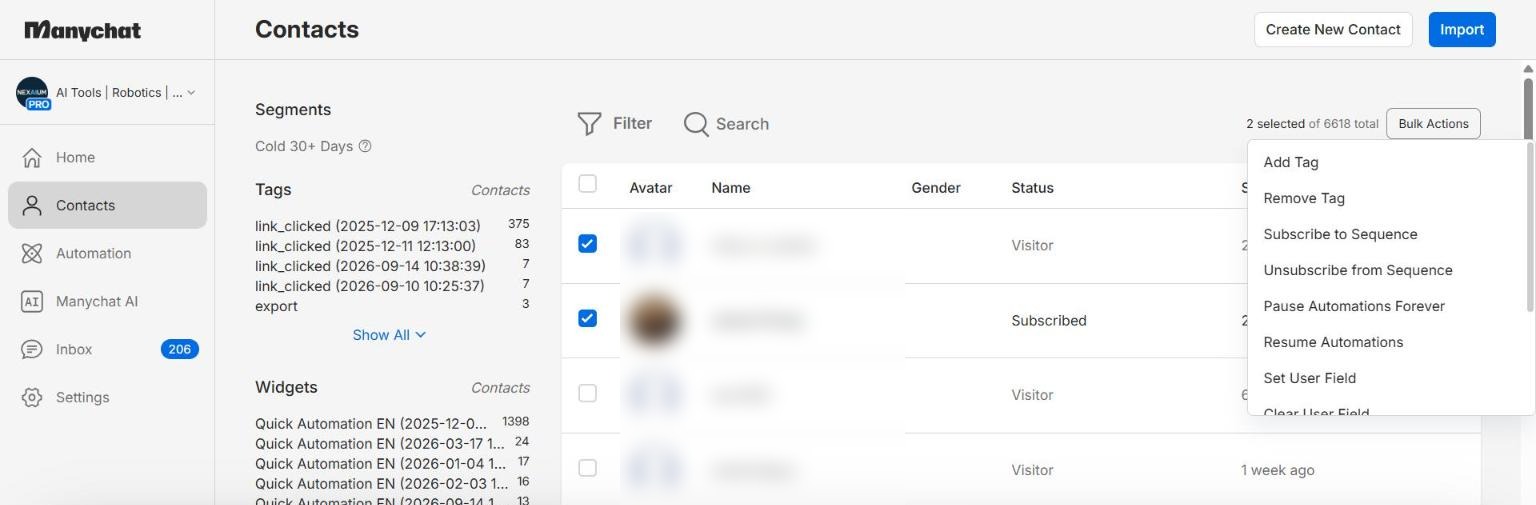
In Contacts, select two opted-in test contacts. Use Bulk Actions → Subscribe to Sequence → export, then verify two new, correctly mapped rows. Be aware that an immediate Sequence can start processing as soon as contacts are subscribed.
SCREENSHOT 09 / 14Menu location: Bulk Actions → Subscribe to Sequence. This screenshot includes a Visitor; filter to opted-in contacts before running your test.
Now filter Contacts to Opted-in is true. The filtered count is the relevant ceiling for this export; Visitor contacts should not be treated as opted-in recipients.
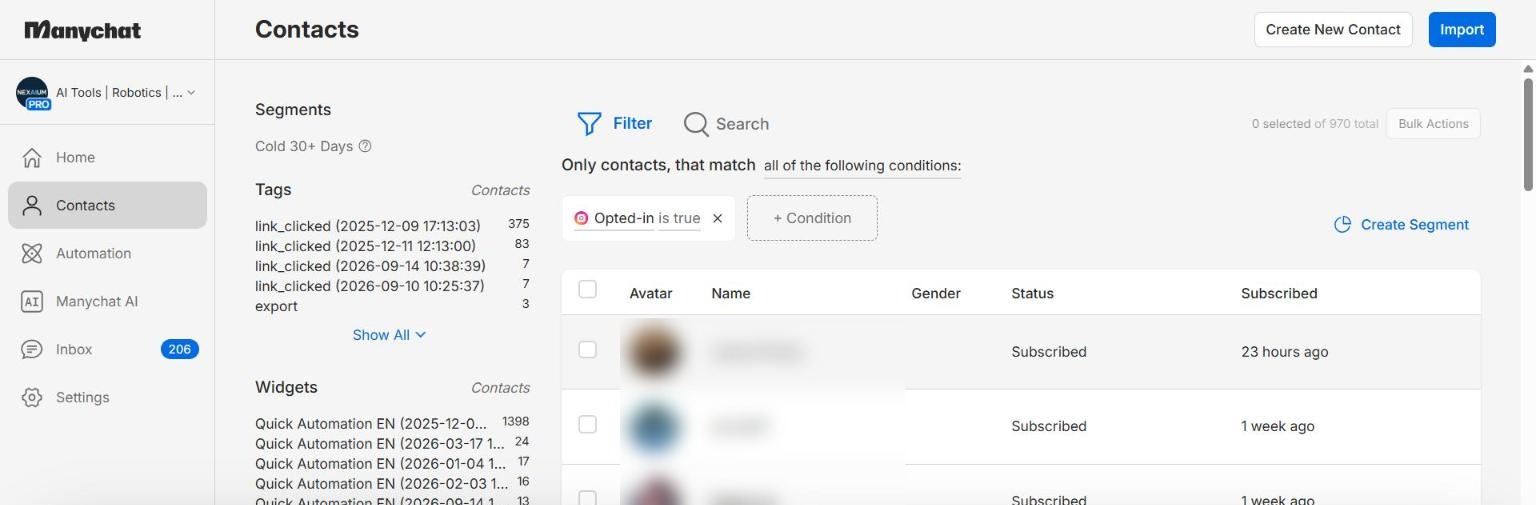
SCREENSHOT 10 / 14The Opted-in is true filter and its contact count.
Do not select thousands at once. ManyChat documents Google Sheets request limits and warns that a large action-only export may miss rows when the integration is saturated. Enroll a small batch - at most about 100 contacts is a conservative starting point - wait for its rows, reconcile the count and Contact IDs, then continue. If rows are missing, pause and reduce the batch size. Avoid enrolling the same contact twice, or you may create duplicate rows. ManyChat integration limits · Bulk export guidance
The automation dashboard can help you compare how many contacts reached Insert Row with the unique Contact IDs in the Sheet. In my run, 968 contacts reached this action; 917 usable usernames remained after cleaning. Turn the temporary Sequence off when the export is complete.
SCREENSHOT 11 / 14The export action reached 968 contacts in the author's run.
5. Connect Claude Code, Zapier and Apify
You can skip to the manual route below if you do not use Claude Code. For the assisted route, create or sign in to Zapier and Apify, then connect Zapier in Claude's Connectors. Zapier is the bridge to Google Sheets and Apify; it does not remove the need to authorize each connected account. Zapier MCP setup
SCREENSHOT 12 / 14Zapier appears as Connected in Claude's connectors.
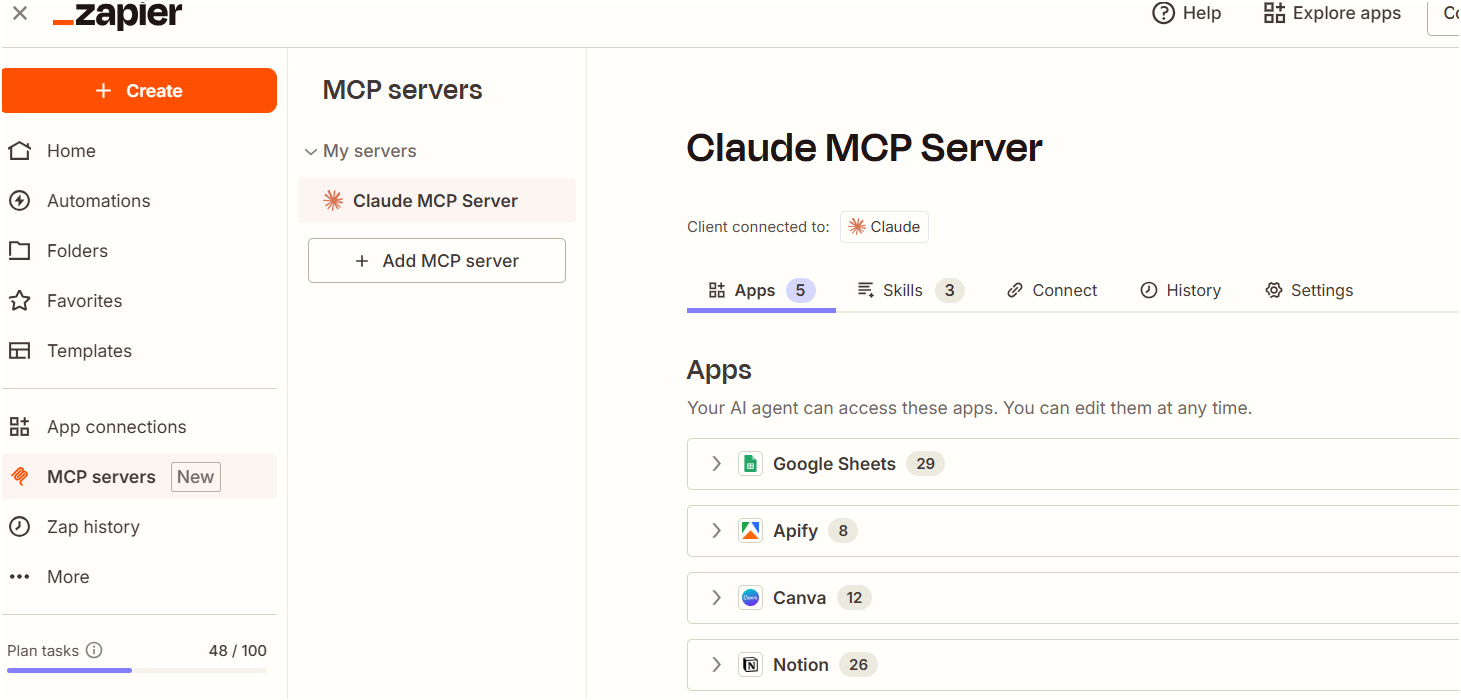
Add Google Sheets and Apify to that same Zapier account, then connect the actual Google and Apify accounts. Adding an app is not the same as authorizing an account. Review each permission screen and stop if it asks for something unexpected. Check Zapier's task counter before a large run.
SCREENSHOT 13 / 14Google Sheets and Apify added in Zapier; the task counter is visible.
Do not automate browsing through your personal Instagram login. Use only public fields returned by the chosen provider, within its terms. A private account may still have a visible bio, but never infer protected content from it.
6. Run the research in Claude Code
Copy the first prompt below. Replace the Sheet URL and tab name, then paste it into Claude Code. It asks Claude to inspect the available Zapier actions rather than assuming every connector exposes the same controls. It also requires a cost and row-count checkpoint before any paid run.
After it finishes, inspect the new audience and summary tabs yourself. In my run, two independent category passes agreed on 95% of the profiles both kept, but they differed on borderline bios. That is a reason to review the output, not a guarantee of classifier accuracy. Some profiles were unavailable or had no useful bio; do not fill those gaps with guesses.
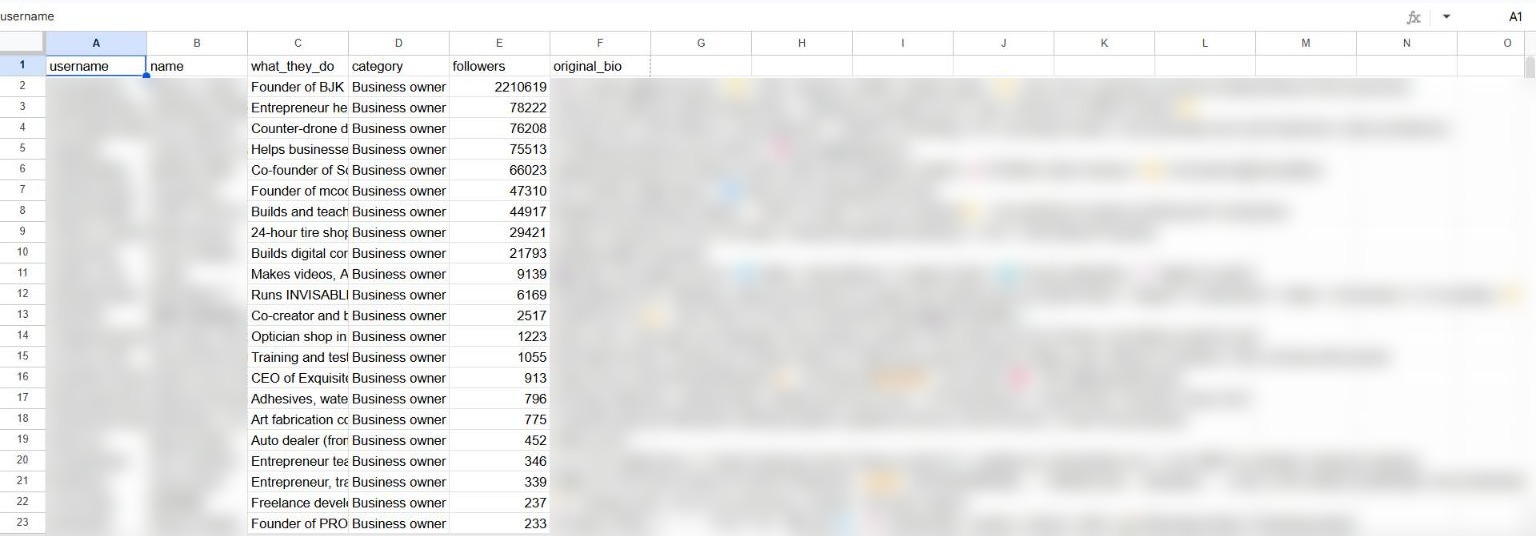
SCREENSHOT 14 / 14The resulting audience tab. Usernames and bios are blurred.
What the result can - and cannot - tell you
Among the 762 profiles retrieved in my run, only 154 had enough information for a category. Business owners, students and creators were the largest visible groups. I also discovered that a planned tool for sales teams did not match the people who had actually opted in. That changed what I would test next.
But this is a self-selected, incomplete sample: people who opted in through my automations and whose public profiles were retrievable and interpretable. It cannot describe every follower, prove demand, reveal private jobs or justify targeting someone based on their bio. Choose one content hypothesis for a group, publish a useful piece, measure response and repeat later.
Keep the workbook private. Do not sell it, expose Contact IDs or DM people about inferred traits. If you add Insert Row to ongoing ManyChat automations, check each flow separately so a person is recorded once, and keep your privacy notice and retention practice current.
Manual route: no Claude Code required
Parts 1-4 are the same. In the Apify Instagram Profile Scraper, paste the deduplicated usernames as one-per-line input and run a small sample first. Check pricing and credit before scaling. Export only fields needed for this analysis - for example username, full name, biography, business category, follower count and private status - as CSV. Avoid downloading posts or unrelated profile data.
Upload the CSV to a chat tool you trust with this data and use the second prompt below. Check the returned counts and sample rows. In Google Sheets, choose File → Import → Upload → Insert new sheet(s) so the original export remains intact. Rename the new tab audience; make a separate summary tab from the reported counts. If the chat tool cannot process the whole CSV reliably, split it into numbered batches and reconcile every input row.
Copy prompt 1: Claude Code + Zapier
Replace the two bracketed values. Review the connections, pricing and proposed run before you say OK.
Copy-ready block
I want an aggregate picture of what my opted-in Instagram audience publicly says it does.

Google Sheet: [PASTE SHEET URL]
Source tab: [TYPE TAB NAME]
Read only the username column; ignore the other source columns.

Use my connected Zapier tools for Google Sheets and Apify. Do not request raw API keys, use my Instagram login, open Instagram in a browser, or change an existing sheet tab. Do not send messages to contacts. If a tool is missing, unavailable, or cannot safely perform a step, stop and explain the exact manual alternative. Do not invent results.

1. Inspect available Zapier actions and authorized accounts. Confirm the specific Google Sheets read/create-sheet/add-rows actions and Apify actor-run/result-fetch actions that actually exist. If either account is not connected, give me its authorized connection link and wait. Ask me to review permissions, not to approve them blindly.

2. Read the username column in numbered batches until the last nonempty row. Normalize leading @ signs, remove blanks and duplicates, and report the source-row count and unique-handle count. Do not transfer Contact IDs to Apify.

3. Estimate the live Apify cost using the actor's current pricing and my remaining credit. Estimate Zapier MCP tool calls and tasks using the actions you actually plan to run and my remaining plan allowance. Tell me the sample size, expected cost, task estimate and data sent to each service. Wait for my explicit OK. If the whole list exceeds budget, propose a smaller sample.

4. Run Apify's official Instagram Profile Scraper on at most 400 usernames per actor run, one run at a time. Use public profile fields only. If the integration cannot launch and fetch results separately, stop and show me the manual Apify export path. For every batch, wait for completion, fetch paginated dataset items, and reconcile requested handles against returned handles. Retry a still-running batch once after waiting; if counts remain short, stop and show the missing-handle count and run status. Do not silently use a partial batch.

5. Classify from biography, specific business category, and an explicit activity in the name field only. Never infer occupation from a photo, follower count, personal name or private content. Keep only accounts with a clear profession, business, field of study, topical content page, sport or main hobby. Skip empty, generic or ambiguous bios. Use one of: Business owner or freelancer; Tech professional; AI or tech page; Content creator; Artist or musician; Student; Other profession; Sports or hobby. If two fit, choose the clearest primary activity and mark ambiguity for my review. Process in bounded batches and report input, kept and skipped counts for each.

6. Before writing, show me the final counts and ask approval to create new tabs. Create new tabs audience and summary; if those names exist, use unique names and never overwrite existing data. In audience write username, name, what_they_do, category, followers, original_bio. In summary write source handles, profiles found, private accounts, usable bios, classified accounts, category counts, three numbered observations and limitations. Write in supported batch sizes, read both tabs back and reconcile their row counts against the planned output. If write or read-back fails, stop and report what did and did not save.

Show the aggregate summary, all unknowns and a shortlist of ambiguous rows for my manual review. Never claim that public bios represent my entire audience.
Copy prompt 2: classify an Apify CSV manually
Copy-ready block
I uploaded a CSV of public Instagram profile fields from people who opted in to my automations. Use only username, fullName, biography, businessCategoryName, followersCount and private. Do not infer private information or contact anyone.

First count input rows, duplicate usernames, unavailable profiles, empty bios and private accounts. Process the file in bounded batches; if you cannot read every row, say so before classifying. Never invent a missing row.

For each available profile, keep it only if its biography or a specific business category clearly states a job, business, school or field of study, topical content page, sport or main hobby. An explicit activity in the name field can support the bio; a personal name alone cannot. Skip quotes, emojis, locations, relationship details, generic labels and ambiguous descriptions. Do not guess from the profile picture or follower count. A private account may still have a public bio; classify only from that visible text.

Assign each kept profile exactly one category: Business owner or freelancer; Tech professional; AI or tech page; Content creator; Artist or musician; Student; Other profession; Sports or hobby. If two fit, choose the clearest primary activity. Flag uncertain cases for human review rather than pretending certainty.

Return a downloadable CSV with username, name, what_they_do, category, followers, original_bio, sorted by category then follower count descending. Also return a summary of input, found, usable-bio and kept counts, counts by category, three observations each supported by a number, and a paragraph explaining why this sample does not represent every follower. Check that the sum of category counts equals the number of kept rows.